Flow Graph Visualization
Real-time visual representation of your MIDI routing.
What is the Flow Graph?
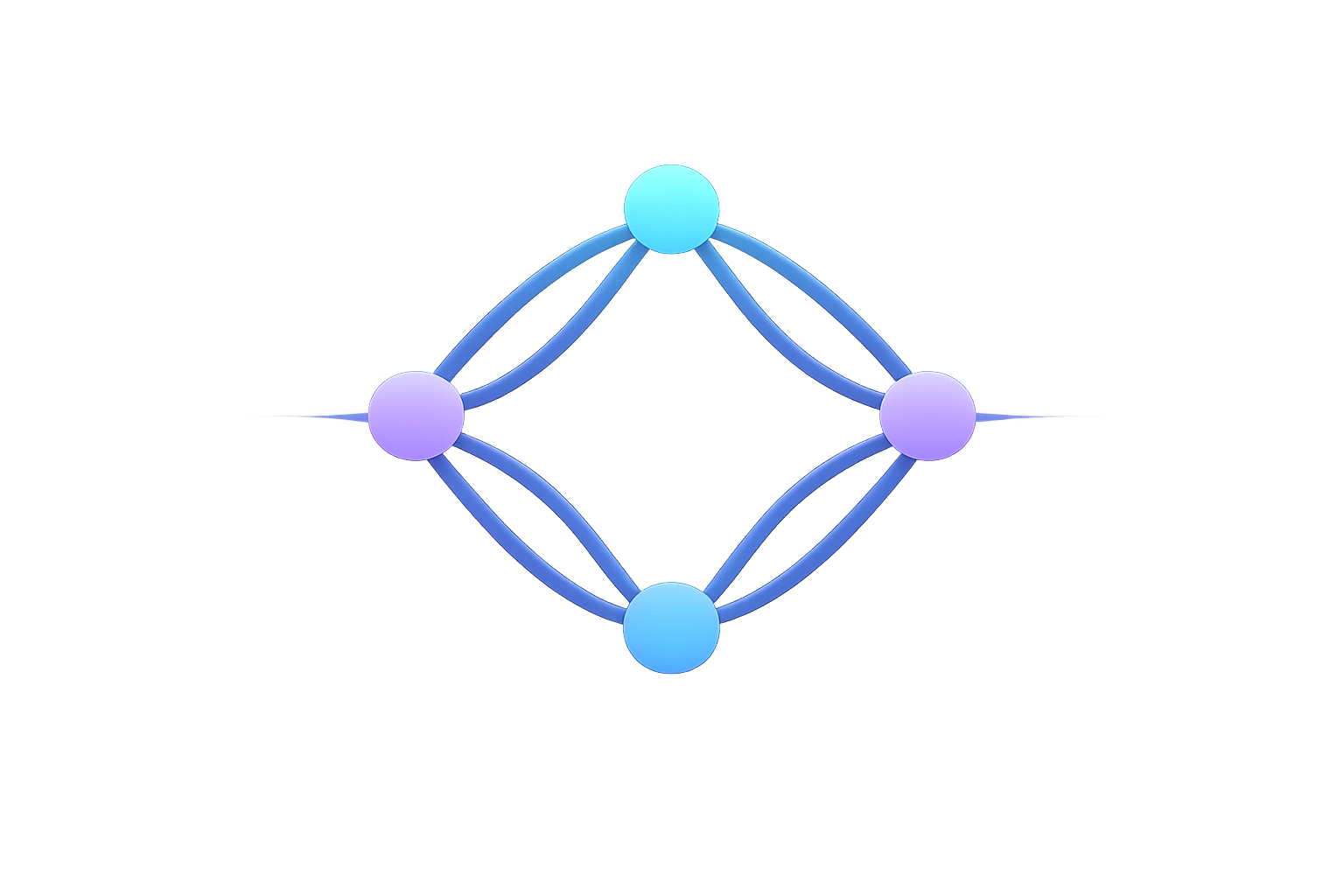
The Flow Graph shows your entire routing setup as an interactive node diagram:
- Nodes represent devices (sources and destinations)
- Edges represent routes connecting them
- Pulses show real-time MIDI activity
Switch to Flow Graph view from the toolbar (⌘2 on macOS).
Visual Elements
Nodes
- Source nodes (left side) — MIDI inputs
- Destination nodes (right side) — MIDI outputs
- Size — Scales with activity level
- Color — Indicates device type and status
Edges (Routes)
- Lines connect source to destination
- Thickness — Indicates message throughput
- Pulses — Travel along edge when MIDI flows
- Color — Different colors for different message types
Activity Pulses
- Note events — Bright pulses
- CC events — Dimmer pulses
- Clock events — Subtle pulses
- Speed — Indicates tempo/activity rate
Interactions
Click Node
Opens device details panel showing:
- Device info
- Active channels
- Message stats
- Connection status
Click Edge
Opens Route Editor for that route:
- Transform stack
- Channel filter
- Statistics
- Enable/disable
Drag Nodes
Rearrange layout:
- Click and drag any node
- Layout saves automatically
- Reset to auto-layout: Right-click → Reset Layout
Zoom & Pan
- Pinch to zoom (trackpad/touch)
- Scroll wheel to zoom
- Drag background to pan
- Fit to screen button resets view
Use Cases
Live Performance
Keep Flow Graph on second screen:
- Instant visual feedback
- Spot routing issues immediately
- See activity distribution across setup
Debugging
Troubleshoot routing problems:
- Is MIDI reaching the destination? (pulses visible)
- Which routes are active? (pulsing edges)
- Are all devices connected? (node colors)
Setup Visualization
Understand complex routing:
- See the big picture
- Identify bottlenecks
- Optimize routing topology
Tips
- Organize layout — Arrange nodes logically (left to right flow)
- Use fullscreen — More space for complex setups
- Second display — Dedicate screen to Flow Graph during performance
- Reduce visual noise — Disable clock pulses if distracting (Settings)
Performance
Flow Graph has minimal impact on MIDI latency:
- Rendering happens off main thread
- Can be disabled in Settings if needed
- No performance difference between Dashboard and Flow Graph for routing
Next Steps
- Monitoring & Analytics — Detailed stats
- Tools & Utilities — Additional visualization tools
- Common Workflows — Practical routing examples